
Bogdan Agiu, O365 L2 Engineer
Microsoft 365 is now much more than email, Word, Excel, and Teams. For many companies, it has become the identity layer, collaboration hub, document repository, communication platform, and security control plane of the business.
That makes your Microsoft 365 tenant one of your most important IT assets and one of your most attractive attack surfaces.
The problem is that many Microsoft 365 environments are still running with settings that were designed for fast onboarding, not mature security.
Common examples include permanent Global Admin accounts, incomplete MFA coverage, legacy authentication still allowed, overly permissive external sharing, weak guest access governance, and insufficient audit visibility.
For a small company with very limited data exposure, default settings may appear manageable for a while. But for B2B companies handling customer data, financial documents, contracts, intellectual property, regulated information, or operational workflows, Microsoft 365 security is no longer optional.
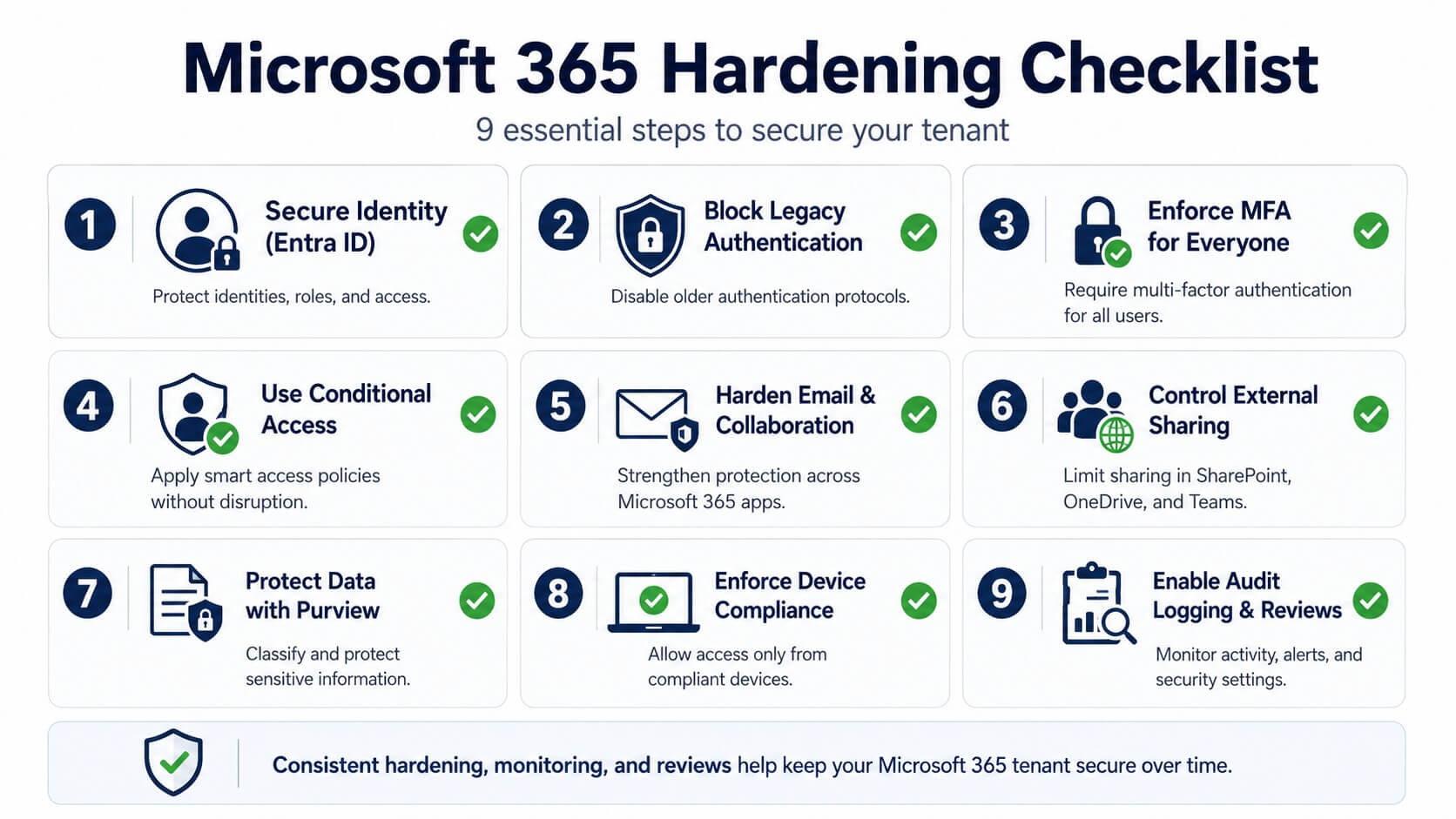
This Microsoft 365 tenant hardening checklist explains the key controls every organization should review when securing Microsoft 365.
Explore Optimizor’s Microsoft 365 Security Packages and get a prioritized hardening roadmap for your environment.
What Is Microsoft 365 Tenant Hardening?
Microsoft 365 tenant hardening is the process of reducing unnecessary risk in your Microsoft cloud environment by tightening identity, access, collaboration, email security, device compliance, data protection, and monitoring controls – the same areas covered in Optimizor’s Microsoft 365 Security Packages.
In practical terms, hardening means moving away from permissive defaults and toward a Zero Trust operating model:
- verify every sign-in;
- limit administrative privileges;
- block outdated authentication methods;
- restrict unmanaged device access;
- protect sensitive data;
- monitor risky behavior continuously.
Microsoft recommends using Conditional Access policies to block legacy authentication and advises starting such policies in report-only mode before full enforcement, so administrators can measure impact before switching them on.
Practical recommendation:
Treat Microsoft 365 tenant hardening as an ongoing security discipline, not a one-time configuration project. Start by reducing risky defaults, then review identity, access, collaboration, data protection, and monitoring settings on a regular schedule.
Who Needs Microsoft 365 Tenant Hardening?
Microsoft 365 tenant hardening is especially important for organizations that:
- have more than 50-100 users;
- rely heavily on Teams, SharePoint, OneDrive, and Exchange Online;
- allow external collaboration with clients, suppliers, or partners;
- manage sensitive business, financial, legal, HR, or customer data;
- operate in regulated industries;
- use hybrid identity or remote work models;
- have Microsoft 365 Business Premium, E3, E5, or security add-ons;
- do not have dedicated internal cybersecurity capacity and need support through IT managed services.
For Romanian and EU-based B2B companies, hardening is also part of building a defensible security posture around data protection, supplier risk, operational resilience, and business continuity.
The Practical Microsoft 365 Tenant Hardening Checklist
1. Secure Identity First with Microsoft Entra ID
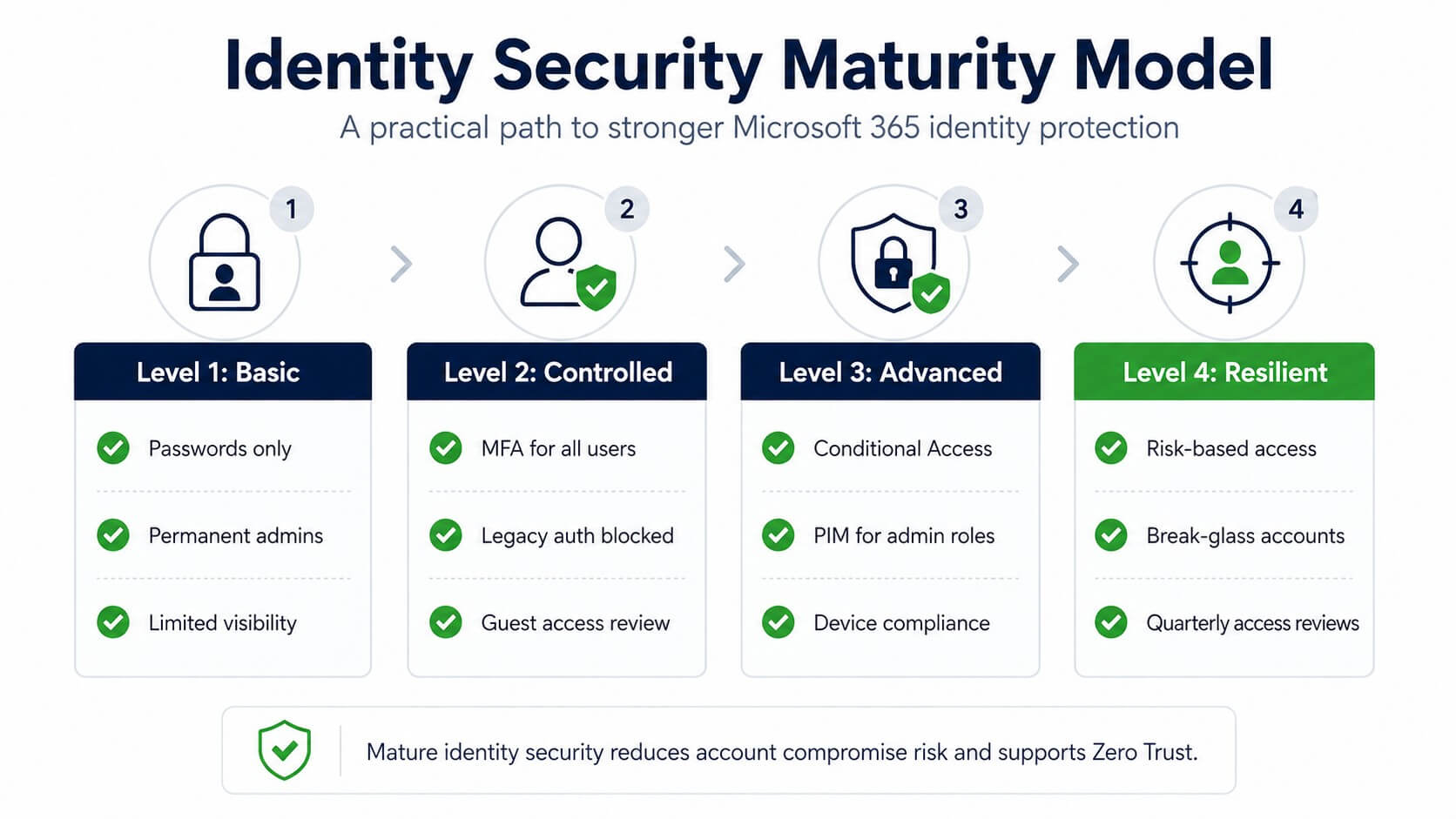
Identity is the foundation of Microsoft 365 security. If an attacker compromises a user account – especially an admin account – they may gain access to email, Teams conversations, SharePoint files, OneDrive data, business applications, and sensitive customer information.
Start with these controls:
| Control | Recommended Action |
| MFA | Enforce MFA for all users, not only administrators |
| Admin accounts | Remove permanent Global Admin assignments wherever possible |
| Privileged access | Use Microsoft Entra Privileged Identity Management for eligible, time-bound roles |
| Legacy authentication | Block legacy authentication protocols |
| Conditional Access | Apply risk-based and context-aware access rules |
| Break-glass accounts | Maintain 1-2 emergency accounts, secured and monitored |
| App consent | Restrict user consent to unverified or risky applications |
| Guest access | Review external users regularly |
Microsoft Entra Privileged Identity Management allows eligible users to activate privileged roles only when needed and for a limited duration, reducing standing administrative access.
Practical recommendation:
Start hardening with identity controls because compromised accounts are often the fastest path into email, Teams, SharePoint, OneDrive, and business data. Enforce MFA, reduce permanent admin roles, use PIM where available, and review guest and app access regularly.
Quick check I run on day one:
PowerShell
Get-MgAuditLogSignIn -All |
Where-Object { $_.ClientAppUsed -notin @(‘Browser’, ‘Mobile Apps and Desktop clients’) } |
Select-Object CreatedDateTime, UserDisplayName, ClientAppUsed, OriginalRequestId
2. Block Legacy Authentication
Legacy authentication is one of the most dangerous weaknesses in Microsoft 365 environments because it can bypass modern security controls such as MFA in certain scenarios.
Legacy authentication includes older protocols and clients such as POP, IMAP, SMTP AUTH, and older Office clients that do not support modern authentication. Microsoft’s documentation explains that security defaults can block legacy authentication protocols, and Conditional Access can be used for more granular control.
Recommended process:
- Review sign-in logs for legacy authentication usage.
- Identify service accounts, scanners, applications, or devices still depending on older protocols.
- Move business-critical services to modern authentication.
- Create a Conditional Access policy in report-only mode.
- Validate the impact.
- Enforce the block.
Practical recommendation:
Block legacy authentication after reviewing sign-in logs and identifying any applications, devices, or service accounts that still depend on older protocols. This reduces account takeover risk while avoiding disruption to business-critical workflows.
3. Enforce MFA for Everyone
MFA should not be treated as an optional security feature or something reserved only for executives and administrators.
Attackers usually look for the weakest account that gives them access to useful data. A compromised “normal user” can still expose email, Teams messages, files, invoices, contracts, credentials, or internal business information.
Microsoft research states that MFA can block more than 99.9% of account compromise attacks.
Recommended actions:
- require MFA for all users;
- prioritize phishing-resistant methods where possible;
- avoid SMS-only MFA for high-risk roles;
- enforce MFA for admin portals;
- monitor MFA fatigue or repeated prompts;
- document exceptions and review them regularly.
Optimizor recommendation:
For B2B companies, MFA rollout should be planned with user communication, device readiness, and support coverage. A poorly planned rollout can create resistance, but a well-planned rollout quickly becomes business-as-usual.
4. Use Conditional Access Without Locking Out the Business
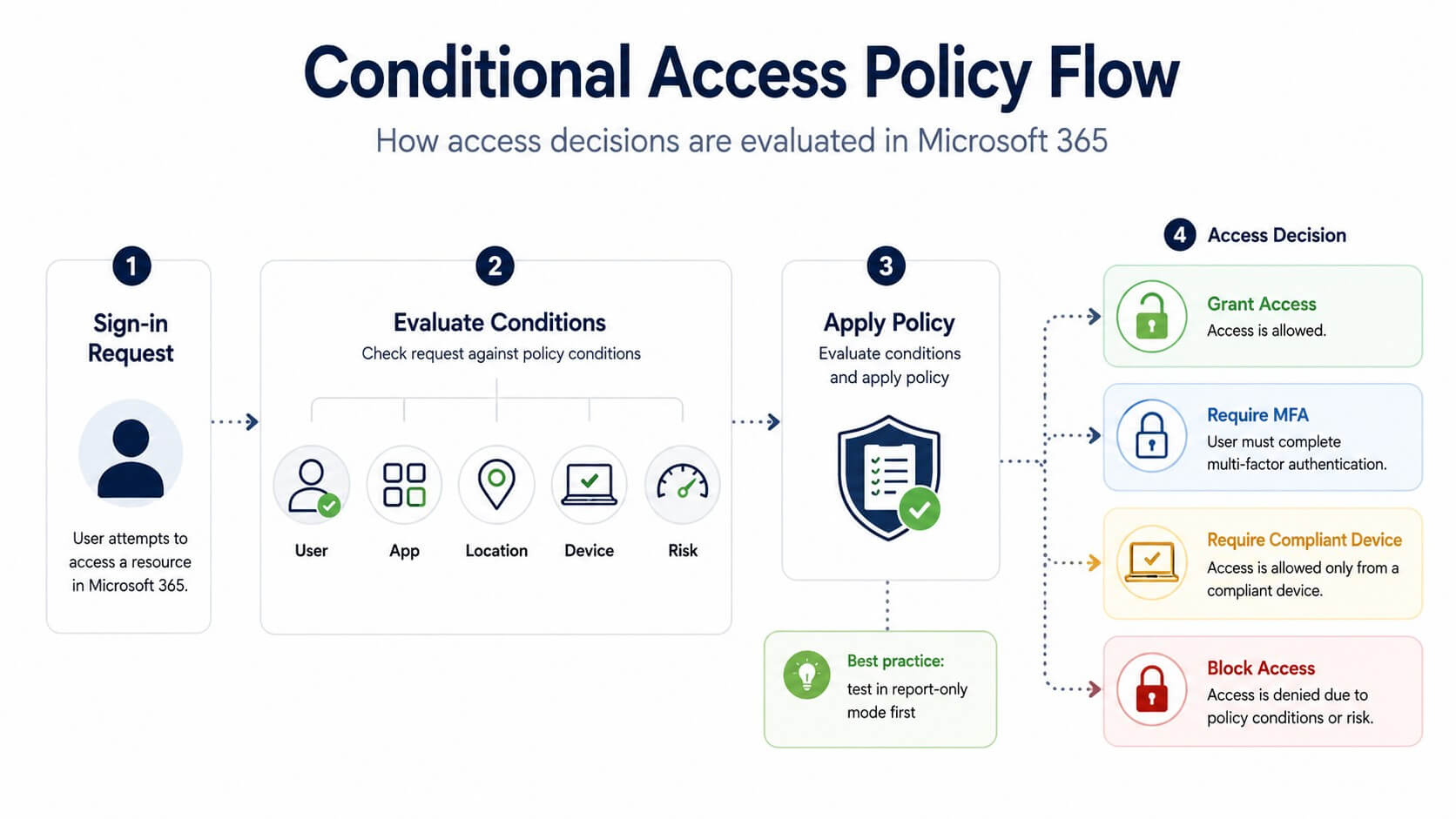
Conditional Access is one of the most powerful security tools in Microsoft 365, but it must be deployed carefully.
Good Conditional Access policies answer questions such as:
- Who is trying to sign in?
- From where?
- From which device?
- To which application?
- Under what risk conditions?
- With what authentication strength?
Microsoft’s Conditional Access documentation includes policies for requiring MFA, blocking legacy authentication, requiring compliant devices, and using risk-based access where licensing allows.
| Policy | Purpose |
| Require MFA for all users | Reduce account takeover risk |
| Require MFA for admins | Protect privileged access |
| Block legacy authentication | Remove outdated access paths |
| Require compliant devices for sensitive apps | Reduce unmanaged device exposure |
| Block high-risk sign-ins | Reduce identity compromise impact |
| Restrict access by country where appropriate | Reduce unnecessary exposure |
Practical recommendation:
Deploy Conditional Access policies in report-only mode before enforcement. Start with high-impact policies such as requiring MFA, blocking legacy authentication, protecting admin portals, and restricting access from unmanaged or risky devices.
5. Harden Email and Collaboration Security
Email remains one of the most common entry points for phishing, malware, business email compromise, and credential theft, which is why Microsoft 365 hardening should often be treated as part of a broader security upgrade servicesinitiative. Microsoft 365 environments should use Microsoft Defender for Office 365 protections where licensing allows.
Microsoft recommends using Standard and Strict preset security policies instead of manually building every setting from scratch in many scenarios. These policies include protections such as anti-phishing, impersonation protection, Safe Links, and Safe Attachments.
Recommended controls:
- enable Defender for Office 365 preset security policies;
- configure Safe Links and Safe Attachments;
- protect executives and finance teams against impersonation;
- configure SPF, DKIM, and DMARC;
- monitor phishing submissions;
- train users on reporting suspicious emails;
- review mailbox forwarding rules;
- disable external auto-forwarding where not required.
Safe Attachments provides an additional layer of protection by checking attachments in a virtual environment before delivery, while Safe Links helps protect users against malicious URLs in email and collaboration contexts.
Practical recommendation:
Enable Microsoft Defender for Office 365 protections and configure email authentication before relying only on user awareness training. Safe Links, Safe Attachments, anti-phishing policies, and impersonation protection reduce the risk of phishing, malware, and business email compromise.
6. Control External Sharing in SharePoint, OneDrive, and Teams
Collaboration is one of Microsoft 365’s biggest advantages, but uncontrolled sharing can expose sensitive data – especially when SharePoint permissions, intranet access rights, and external sharing rules are not clearly governed.
A common issue is allowing “Anyone with the link” sharing by default. This may be convenient, but it often creates unmanaged exposure, especially when users share files with clients, suppliers, consultants, or personal email accounts.
For companies that depend heavily on internal communication and document collaboration, Optimizor’s SharePoint intranet packages can help structure access rights and collaboration workflows more securely.
Recommended actions:
- disable anonymous sharing unless there is a clear business case;
- restrict external sharing by site sensitivity;
- require authenticated external users;
- apply expiration dates to external links;
- review guest users regularly;
- monitor externally shared files;
- use sensitivity labels for confidential data.
Microsoft Entra access reviews can be used to manage guest access and periodically confirm whether external users still need access.
7. Protect Sensitive Data with Microsoft Purview
Security is not only about keeping attackers out. It is also about controlling what happens to sensitive data once it exists inside Microsoft 365.
Microsoft Purview sensitivity labels allow organizations to classify and protect data while supporting collaboration and productivity.
Recommended controls:
| Control | Purpose |
| Sensitivity labels | Classify documents and emails |
| DLP policies | Detect and protect sensitive information |
| Auto-labeling | Reduce dependence on manual user action |
| Retention policies | Manage data lifecycle |
| Restricted sharing | Prevent confidential documents from leaving the organization |
Microsoft Purview Data Loss Prevention policies can help identify, monitor, and protect sensitive data across Microsoft 365 services and other supported locations.
For EU companies, this is especially relevant for documents containing personal data, financial information, contracts, HR files, customer records, IBANs, identity documents, or commercially sensitive information.
8. Enforce Device Compliance with Intune and Defender for Endpoint
A secure identity strategy is weakened if users can access business data from unmanaged, outdated, or infected devices.
For companies with remote work, hybrid work, or bring-your-own-device scenarios, device compliance should be part of the Microsoft 365 access model.
Recommended actions:
- enroll corporate devices in Microsoft Intune;
- define compliance policies;
- require encryption and secure boot where applicable;
- block access from non-compliant devices for sensitive apps;
- onboard endpoints to Microsoft Defender for Endpoint;
- monitor device risk signals;
- separate personal and corporate data on mobile devices.
Business impact:
Device compliance reduces the risk of data exposure from stolen laptops, unmanaged personal devices, outdated operating systems, and compromised endpoints.
9. Enable Audit Logging, Alerts, and Regular Reviews
You cannot protect what you cannot see.
Many Microsoft 365 tenants have security controls enabled but lack effective monitoring. This creates a dangerous gap: attacks may happen, but no one notices until data has been accessed, forwarded, deleted, or exfiltrated.
Microsoft Purview audit capabilities allow organizations to search and investigate Microsoft 365 activities, and audit retention policies can be configured depending on licensing and requirements.
Recommended monitoring activities:
- review risky users and risky sign-ins;
- monitor admin role activations;
- alert on mailbox forwarding rule creation;
- alert on mass file downloads;
- monitor external sharing spikes;
- review failed MFA attempts;
- review guest access quarterly;
- review Conditional Access changes;
- export and retain logs according to business and compliance needs.
Recommended review cadence:
| Frequency | Activity |
| Weekly | Risky users, risky sign-ins, phishing alerts |
| Monthly | Admin roles, mailbox rules, external sharing |
| Quarterly | Guest users, Conditional Access policies, privileged access |
| Annually | Full Microsoft 365 tenant security assessment |
Practical recommendation:
Enable audit logging and create alerts for high-risk actions such as admin role changes, suspicious sign-ins, mailbox forwarding rules, mass file downloads, and external sharing spikes. Review these signals regularly so Microsoft 365 security becomes proactive instead of reactive.
Common Microsoft 365 Hardening Mistakes
Mistake 1: “We enabled MFA” – but only for some users
Partial MFA coverage leaves gaps. Attackers do not need your best-protected account. They need one account that works.
Mistake 2: Permanent Global Admins
Standing privileged access increases the blast radius of compromise. Use eligible roles and time-bound activation wherever possible.
Mistake 3: Ignoring service accounts
Service accounts, scanners, scripts, and old applications often depend on weak configurations. Review them before enforcing major policies.
Mistake 4: Overly aggressive Conditional Access
Security controls that break business workflows will be bypassed, disabled, or resisted. Test in report-only mode first.
Mistake 5: No recurring review process
Microsoft 365 security is not “set and forget.” Tenants change constantly as users, devices, guests, applications, and business processes evolve.
A Practical 30-Day Microsoft 365 Hardening Plan
Days 1-7: Assess
- Review Secure Score, but do not rely on it alone.
- Identify Global Admins and privileged roles.
- Check MFA coverage.
- Review legacy authentication usage.
- Review external sharing settings.
- Identify risky users and sign-ins.
Days 8-15: Stabilize Identity
- Enforce MFA.
- Create break-glass accounts.
- Start blocking legacy authentication in report-only mode.
- Reduce permanent admin roles.
- Review app consent settings.
Days 16-23: Harden Collaboration and Email
- Enable Defender preset security policies.
- Configure Safe Links and Safe Attachments.
- Review SPF, DKIM, and DMARC.
- Restrict external sharing.
- Review guest users.
Days 24-30: Improve Monitoring and Governance
- Configure alerts.
- Review audit retention.
- Create recurring access reviews.
- Document exceptions.
- Define quarterly hardening reviews.
If your team needs help turning this checklist into a structured remediation roadmap, Optimizor’s Microsoft 365 Security Packagesare designed to assess your current setup, identify gaps, and prioritize the next steps.
How Optimizor Helps
Optimizor helps B2B companies secure, manage, and optimize Microsoft 365 environments through practical cybersecurity and managed IT services.
A Microsoft 365 Tenant Security Assessment from Optimizor can help you:
- identify risky defaults and misconfigurations;
- review MFA and Conditional Access coverage;
- detect legacy authentication exposure;
- analyze privileged role assignments;
- evaluate external sharing and guest access;
- assess Defender for Office 365 configuration;
- review audit logging and alerting;
- prioritize remediation based on business risk.
The goal is not to chase a perfect score. The goal is to reduce real attack paths, improve visibility, protect business data, and make Microsoft 365 safer without disrupting productivity.
Explore Optimizor’s Microsoft 365 Security Packages and get a prioritized hardening roadmap for your environment.
FAQ: Microsoft 365 Tenant Hardening
What is Microsoft 365 tenant hardening?
Microsoft 365 tenant hardening is the process of securing your Microsoft 365 environment by reducing risky defaults, enforcing strong identity controls, limiting privileged access, protecting data, controlling external sharing, and monitoring suspicious activity.
What is the first step in hardening Microsoft 365?
The first step is securing identity. Start by enforcing MFA, reviewing admin roles, blocking legacy authentication, creating break-glass accounts, and deploying Conditional Access policies carefully.
Should every company block legacy authentication?
In most modern Microsoft 365 environments, yes. Legacy authentication creates unnecessary risk because it relies on older protocols and clients. Before blocking it, review sign-in logs and identify any business-critical systems still depending on it.
Is Microsoft Secure Score enough?
No. Microsoft Secure Score is useful as a starting point, but it should not be the only measure of security. A tenant can have a better score and still have serious risks such as excessive admin privileges, unmanaged guests, poor data controls, or weak monitoring.
How often should a Microsoft 365 tenant be reviewed?
At minimum, key security settings should be reviewed quarterly. Risky sign-ins, privileged access, email threats, and external sharing should be monitored more frequently.
Does Microsoft 365 hardening require third-party tools?
Not always. Many important controls are available inside Microsoft 365, Microsoft Entra ID, Defender, Intune, and Purview, depending on licensing. Third-party tools may help in advanced scenarios, but the priority is configuring the Microsoft security stack correctly.
Final Takeaway
Microsoft 365 is too important to run on default settings.
For B2B companies, tenant hardening is not just an IT task. It is a business risk reduction exercise. Strong identity controls, secure collaboration, protected data, compliant devices, and continuous monitoring help reduce the chance that one compromised account becomes a company-wide incident.
If your organization has not reviewed its Microsoft 365 security posture in the last few months, now is the right time to start.
Explore Optimizor’s Microsoft 365 Security Packages and get a prioritized hardening roadmap for your environment.